Sales Orders
Manage the full order lifecycle — pipeline value, reservations, fulfilment, invoicing, returns, and gross profit — with workflow visibility at every step.
Smart Business Workflows
This module includes guided smart business workflows — multi-step runs with clear stages, review before commit, and audit-friendly history built for how your teams actually work.
Drop Shipping
6 governed steps
Drop Shipping governs vendor-direct fulfilment end to end: customer demand and lines, supplier cost pricing, sell-price confirmation, purchase requisition, inbound and delivery tracking, then sales-order close. Only one active workflow per customer keeps pricing and purchase paths auditable; AP still flows through normal purchasing.
Why teams use it
- Six-step governed flow from quote lines to closed sale — not ad hoc PO entry
- One active workflow per customer prevents overlapping drop-ship chaos
- Purchase cost and inbound tracking linked to the same commercial thread
- Sell-price confirmation step before customer commitment
- Overheads, transfer, and delivery captured before you close the order
Overview
Sales orders are where promises to customers become operational work. Create orders from approved quotations or directly, check credit limits, reserve inventory, and move each order through fulfilment until it is invoiced.
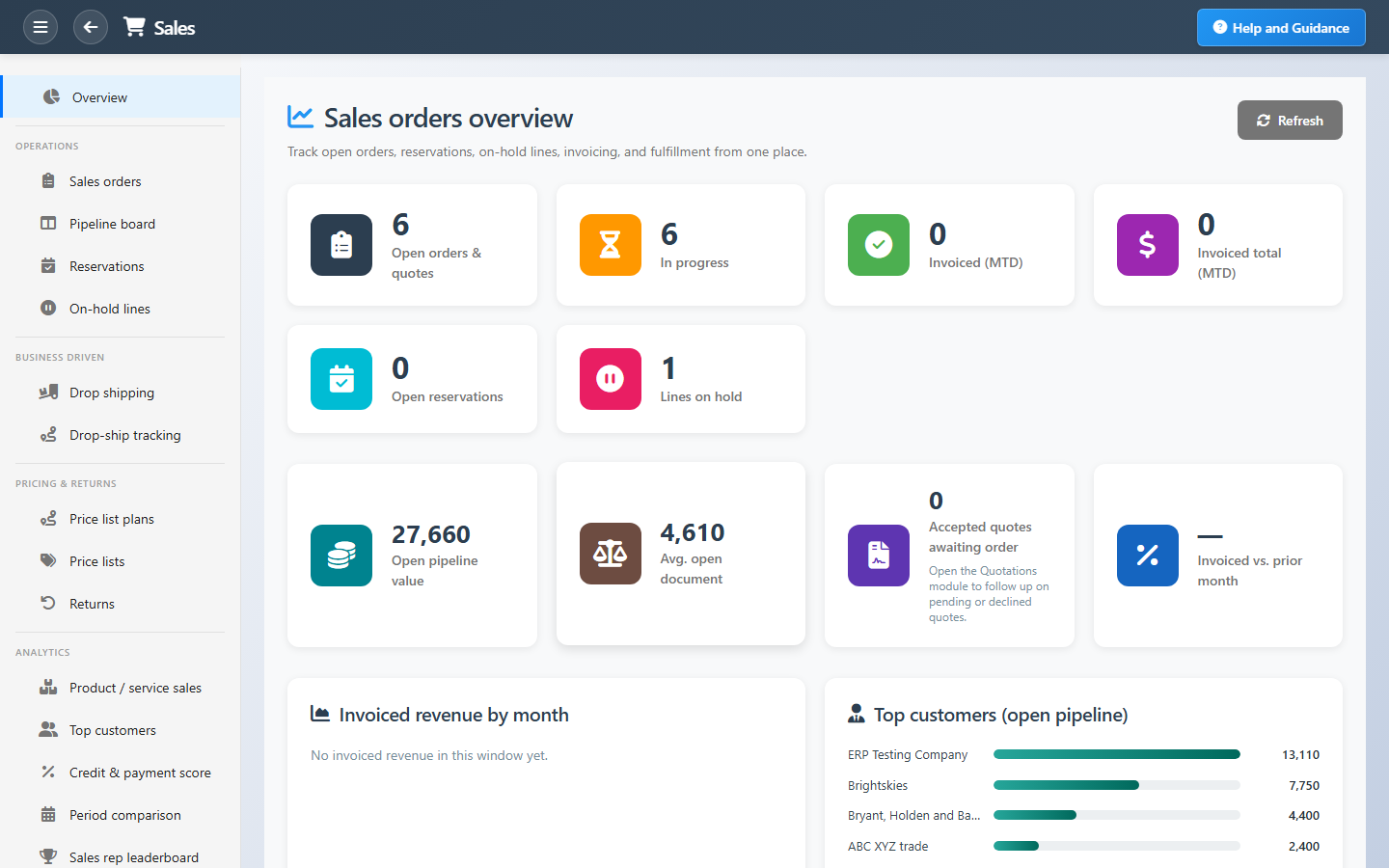
The sales dashboard shows open pipeline value, invoiced revenue trends, top customers, gross profit, and returns — plus orders by status so managers see where deals stall before month-end.
Key Capabilities
Order workflow
Step-by-step status from draft through delivered and invoiced.
Credit checks
Block or approve orders based on customer exposure and limits.
Stock reservation
Reserve inventory at order time so ATP stays honest.
Fulfilment tracking
Picking, delivery, and proof linked to each order line.
Invoice from delivery
Bill customers when goods or services are fulfilled.
Returns handling
Process customer returns with credit notes and stock put-back.
Task Assignment Catalog
The Task Assignment Catalog connects workflow events in this module — documents submitted or approved, thresholds crossed, lifecycle handoffs — to the people who should act next. When an event fires, PerfectoERP assigns follow-up tasks, sends in-app notifications, or both, according to each catalog entry. Teams collaborate through My Desk instead of polling lists or chasing status in email.
Sales order submitted for approval
Task assignment + notification
A sales order was submitted for approval. Review pricing, credit, and delivery commitments.
Default recipients
- Task → Sales Manager
- Notification → Sales Orders Manager
Default routing is customizable per catalog entry — add job functions or individual users, or disable tasks or notifications in Configure.
Customer return order submitted
Task assignment + notification
A customer return order was submitted for approval.
Default recipients
- Task → Sales Manager
- Notification → Warehouse Supervisor
Default routing is customizable per catalog entry — add job functions or individual users, or disable tasks or notifications in Configure.
Customer return approved — receive stock
Task assignment + notification
A customer return order was approved. Receive returned goods into stock.
Default recipients
- Task → Inbound Responsible
- Notification → Sales Manager
Default routing is customizable per catalog entry — add job functions or individual users, or disable tasks or notifications in Configure.
Sales order approved to order
Notification
A sales order was approved to order. Proceed with fulfillment and invoicing.
Default recipients
- Notification → Sales Orders Manager
Default routing is customizable per catalog entry — add job functions or individual users, or disable tasks or notifications in Configure.
Repair order ready for service
Task assignment + notification
A repair order reached a ready-for-service status. Assign a technician.
Default recipients
- Task → Sales Manager
- Notification → Customer Service Manager
Default routing is customizable per catalog entry — add job functions or individual users, or disable tasks or notifications in Configure.
Repair order completed and delivered
Notification
A repair order was completed and delivered to the customer.
Default recipients
- Notification → Sales Manager
Default routing is customizable per catalog entry — add job functions or individual users, or disable tasks or notifications in Configure.
Sales order approved — insufficient stock
Task assignment + notification
A Sales Order was approved while one or more stockable lines have insufficient on-hand quantity. Review the order and source missing stock in Purchasing.
Default recipients
- Task and notification → Purchasing Manager
Default routing is customizable per catalog entry — add job functions or individual users, or disable tasks or notifications in Configure.
Interface Showcase
Pipeline KPIs, revenue trends, order status mix, and fulfilment shortcuts.
Connected Modules
Quotations
Win the deal before you order.
Products
Catalog and price lists.
Customers
Credit and contact defaults.
Delivery Management
Ship what you sold.
Ready to fulfil what you sell?
See open pipeline and stalled orders early, release stuck reservations, and invoice when delivery is done.