Projects
Run projects from award to close-out — guided planning, tasks, materials, subcontractor agreements, change control, and earned-value reporting linked to billing and the field.
Smart Business Workflows
This module includes guided smart business workflows — multi-step runs with clear stages, review before commit, and audit-friendly history built for how your teams actually work.
Project Planner
7 setup steps
The Project Planner is how new work gets structured before anyone hits the site. From header and finance through tasks, overlaps, material lists, subcontractors, and milestones, each step builds on the last — and confirm on step seven captures a versioned baseline for performance dashboards without closing the workflow.
Why teams use it
- Project created after step one; later steps always edit the same live record
- Baseline snapshot on confirm powers baseline-vs-actual and performance reports
- Queue purchase plan lines and apply them when you confirm the plan
- Dedicated workflow list so in-flight setups are never lost in the project grid
- Plan action on an existing project refreshes mirrored fields from current data
Project Controller
9 execution steps
Project Controller is the execution cockpit for a single project after planning is confirmed. Supervisors start approved tasks, watch material consumption, raise purchase requisitions, monitor subcontractor agreements, read budget and earned-value KPIs, assign cash expenses, and update percent complete — all in one guided session per control run.
Why teams use it
- Nine focused steps from task start through budget monitor to progress close
- Live work on tasks, inventory, and purchases — not just a checklist
- Multiple control sessions per project preserve history of site leadership runs
- Material purchase and subcontractor steps tie field reality back to cost control
- Earned-value and budget tiles surface overruns before month-end surprises
Task Controller
3 workbench steps
Task Controller is built for site leads who juggle tasks across several projects in one day. Pick a date window and optional project filters, work an approved-task workbench, record quantities and material usage, finish or postpone work, and undo recent usage — without opening each project separately.
Why teams use it
- Cross-project workbench — one session, many tasks, many sites
- Start only work that is approved to start; reduces unauthorized progress
- Postpone and undo paths for when the day does not go to plan
- Three fast steps: header scope, workbench, review
- Complements Project Controller when the foreman’s day is task-centric, not project-centric
Overview
Projects is the operational hub after you win work. Create a project from scratch or convert a won tender, then walk through the guided planner to define scope, tasks, overlaps, materials, subcontractors, and milestones before you freeze a baseline.
During delivery you manage tasks, meetings, material lists, and change requests — with dashboard charts and reports comparing baseline to actual. Jump to progress billing, site management, tenders, and document control from the same portfolio view.
Key Capabilities
Project planner
Multi-step setup for scope, WBS, materials, milestones, and baseline confirmation.
Tasks & execution
Track work breakdown, status, and throughput on live dashboards.
Material lists
Plan project demand and route purchasing instead of ad-hoc requests.
Subcontractor agreements
Commercial terms tied to project scope and progress billing.
Change requests
Document scope shifts so variance reports stay auditable.
Performance reporting
Baseline vs actual, financial summary, and project performance dashboards.
Task Assignment Catalog
The Task Assignment Catalog connects workflow events in this module — documents submitted or approved, thresholds crossed, lifecycle handoffs — to the people who should act next. When an event fires, PerfectoERP assigns follow-up tasks, sends in-app notifications, or both, according to each catalog entry. Teams collaborate through My Desk instead of polling lists or chasing status in email.
Project change request submitted
Task assignment + notification
A project change request was submitted. Review scope, cost, and schedule impact.
Default recipients
- Task → Project Manager
- Notification → Construction Manager
Default routing is customizable per catalog entry — add job functions or individual users, or disable tasks or notifications in Configure.
Project task submitted for approval
Task assignment + notification
A project task was submitted for approval or sign-off.
Default recipients
- Task → Project Manager
- Notification → Construction Manager
Default routing is customizable per catalog entry — add job functions or individual users, or disable tasks or notifications in Configure.
Project material list submitted
Task assignment + notification
A project material list was submitted for review or purchase planning.
Default recipients
- Task → Project Manager
- Notification → Purchasing Manager
Default routing is customizable per catalog entry — add job functions or individual users, or disable tasks or notifications in Configure.
Project change request approved
Task assignment + notification
A project change request was approved. Update scope, budget, and schedule baselines.
Default recipients
- Task → Project Manager
- Notification → Construction Manager
Default routing is customizable per catalog entry — add job functions or individual users, or disable tasks or notifications in Configure.
Project task overdue
Notification
A project task passed its end date without completion.
Default recipients
- Notification → Project Manager
Default routing is customizable per catalog entry — add job functions or individual users, or disable tasks or notifications in Configure.
Project budget threshold reached
Notification
Project actual cost approached or exceeded the budget threshold.
Default recipients
- Notification → Project Manager
Default routing is customizable per catalog entry — add job functions or individual users, or disable tasks or notifications in Configure.
Subcontractor agreement submitted
Task assignment + notification
A subcontractor agreement was submitted for approval.
Default recipients
- Task → Project Manager
- Notification → Construction Manager
Default routing is customizable per catalog entry — add job functions or individual users, or disable tasks or notifications in Configure.
Subcontractor agreement approved
Task assignment + notification
A subcontractor agreement was fully approved.
Default recipients
- Task → Project Manager
- Notification → Construction Manager
Default routing is customizable per catalog entry — add job functions or individual users, or disable tasks or notifications in Configure.
Project material purchase plan — review unfulfilled lines
Task assignment + notification
The Project Planner created unfulfilled purchase plan lines from project material lists. Review them and proceed with RFQ or purchase request.
Default recipients
- Task → Purchasing Manager
- Notification → Planning Manager
Default routing is customizable per catalog entry — add job functions or individual users, or disable tasks or notifications in Configure.
Interface Showcase
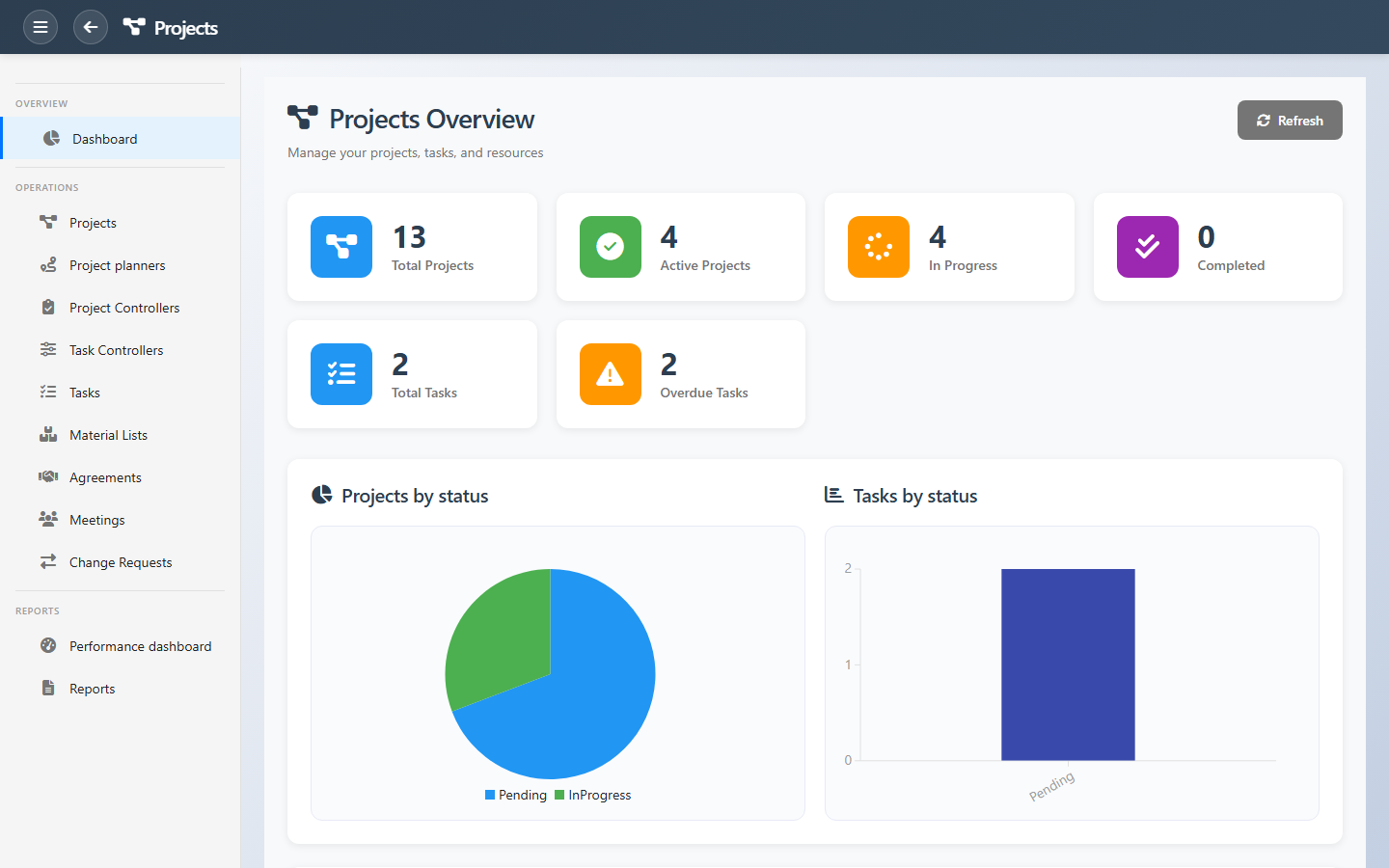
Portfolio KPIs, planner access, tasks, and links to billing and field modules.
Connected Modules
Tenders
Win work before it becomes a project.
Progress Billing
Bill by work completed.
Site Management
Daily progress on site.
Ready to deliver projects on time and budget?
Confirm your baseline in the planner, keep tasks current, and let progress billing reflect real execution.